
How to play Living With A Freeloading Succubus! on an M-series Mac
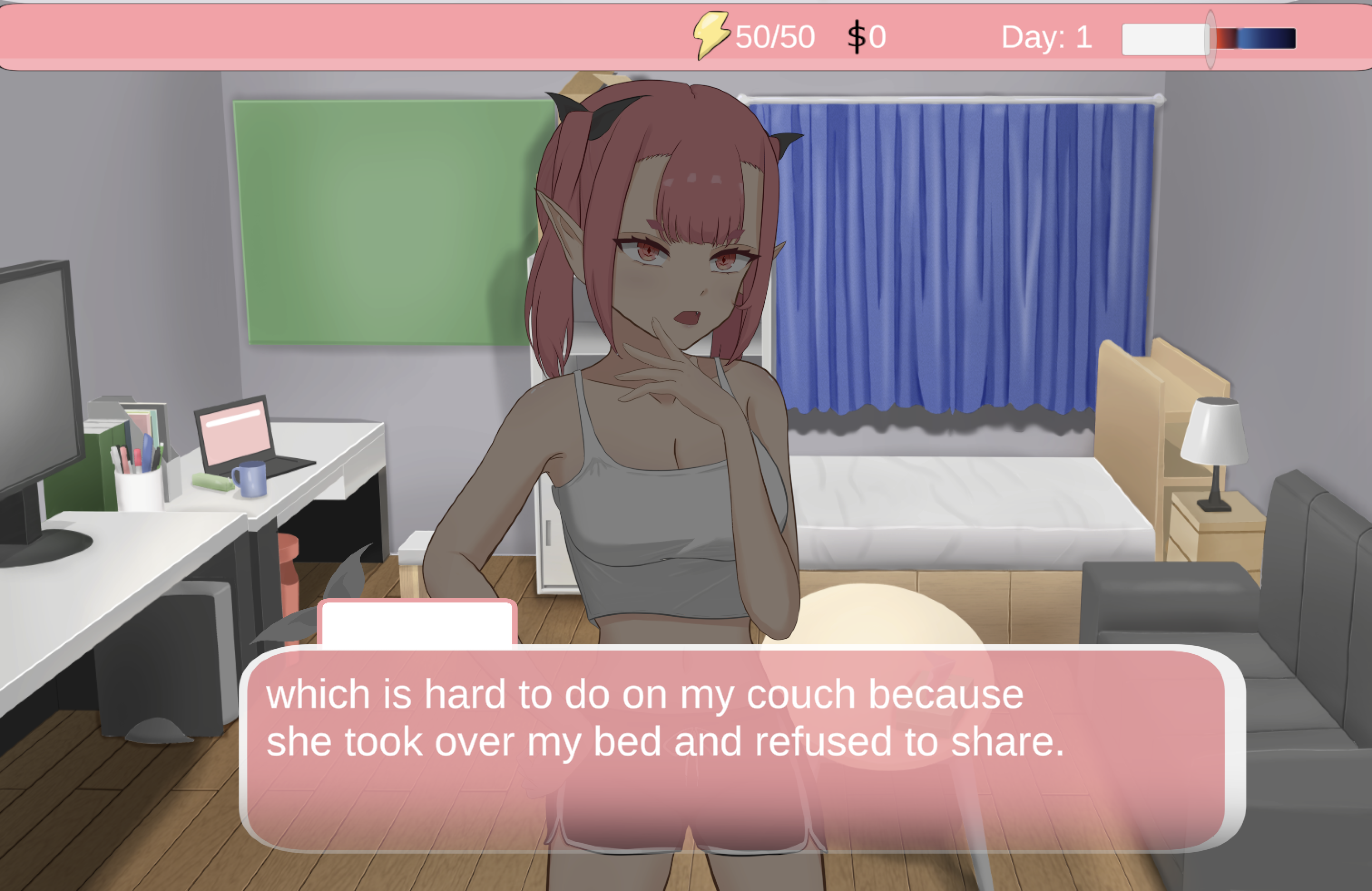
I’ve tested Living With A Freeloading Succubus! on Mac with wingames. Here’s how to get it running.
Install wingames
- On an M-series Mac, install Rosetta first. Open Terminal, paste this command, press Return and follow Apple’s prompts.Apple’s Rosetta instructions
softwareupdate --install-rosetta - Download and open the DMG.
- Drag wingames to Applications.
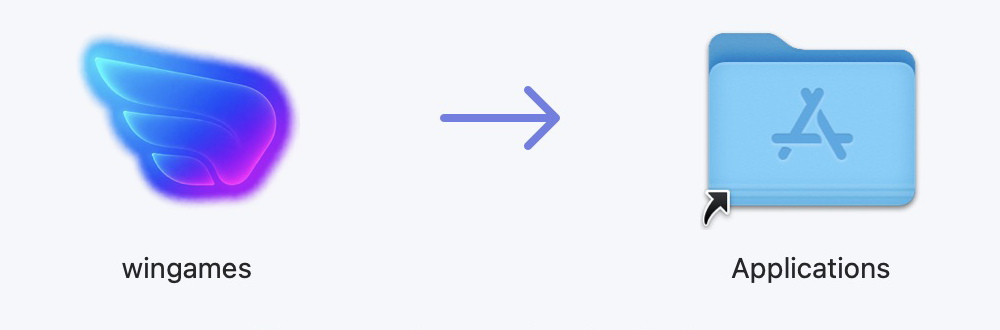
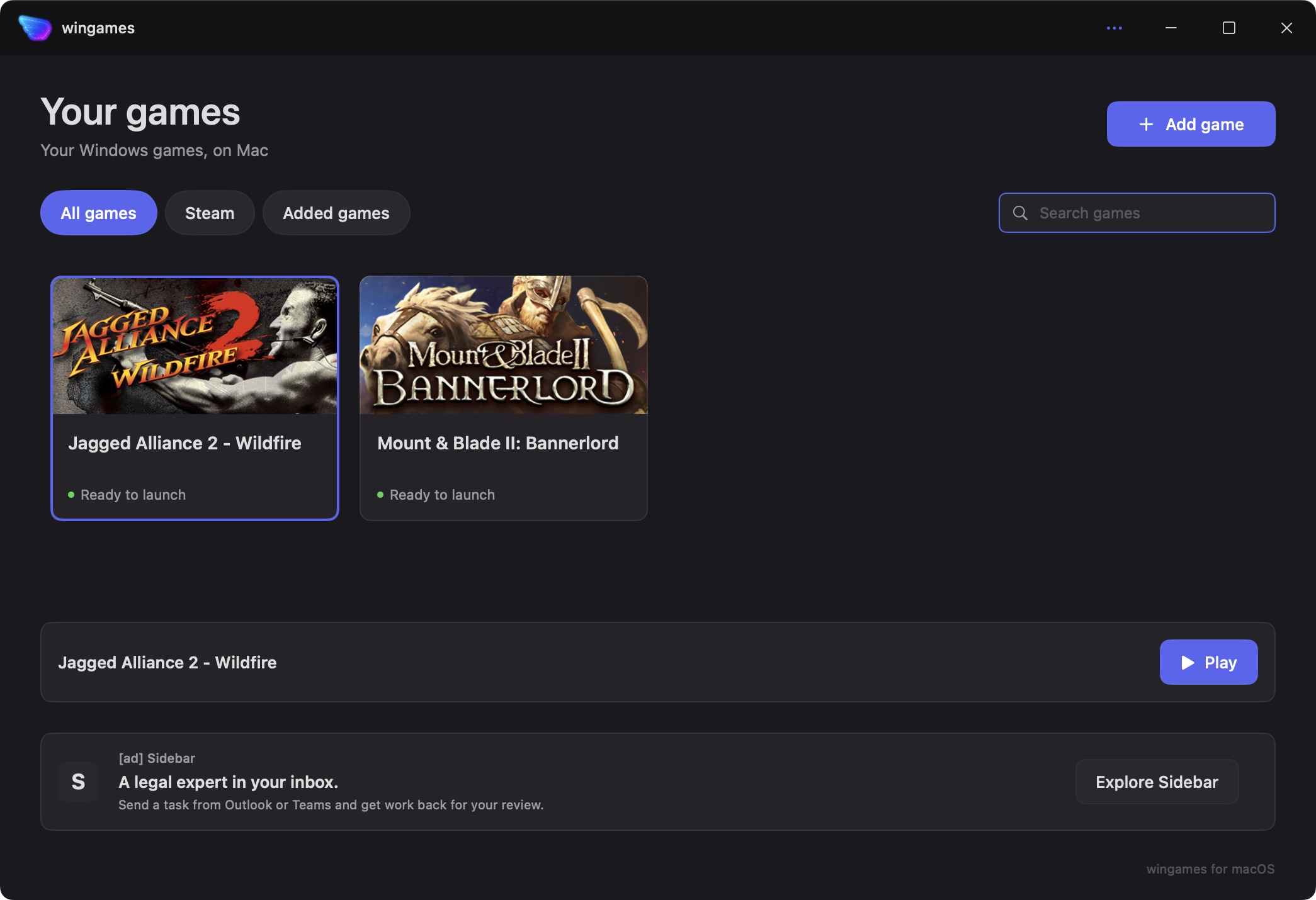
- Open wingames from Applications.
- If macOS blocks it, go to System Settings → Privacy & Security → Open Anyway → Open.
Play Living With A Freeloading Succubus!
- Download the Windows .rar file from Szretfel.
Open Terminal, paste this command and press Return to create the game folder:
mkdir -p ~/Downloads/LWAFSIn Finder, open Downloads → LWAFS and move the downloaded RAR file into that folder.
Back in Terminal, paste this command and press Return:
cd ~/Downloads/LWAFSThen paste this command and press Return to extract the game. If your RAR file has a different name, replace the filename inside the quotes.
tar -xf 'LWAFS! 0.9.7 Challenge mode & Free mode demo.rar'You’ll now see LWAFS!.exe and the game’s other files in the folder.
- In wingames, choose Add game → From your computer… and select
LWAFS!.exe. - Press Play.
Keep LWAFS!.exe, LWAFS!_Data, UnityPlayer.dll, MonoBleedingEdge and the remaining files together. Leave the folder where you added it.