
How to play Love Android Workshop on an M-series Mac

I’ve tested Love Android Workshop on Mac with wingames. Here’s how to get it running.
My review
Love Android Workshop is a super cosy, relaxing game that still makes you think fast. The memory challenges, mental arithmetic and pattern recognition make doing your job well feel satisfying—like being a proper scientist.
It’s still early, and some things don’t work yet, but I’m glad the creator has released it. I’d rather get to play what’s here now than have nothing to try. The foundation feels solid, and I hope they keep building on it.
My main criticism is that some parts can be hard to read, especially which direction a dial is pointing. Some interactions also feel incomplete.
Even with those rough edges, I really enjoyed it. I’m looking forward to more updates, and I’ll probably come back for another playthrough once it’s finished.
Install wingames
- On an M-series Mac, install Rosetta first. Open Terminal, paste this command, press Return and follow Apple’s prompts.Apple’s Rosetta instructions
softwareupdate --install-rosetta - Download and open the DMG.
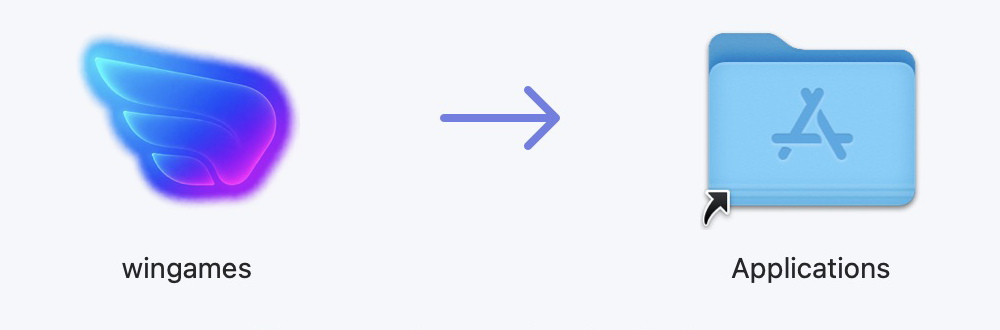
- Drag wingames to Applications.
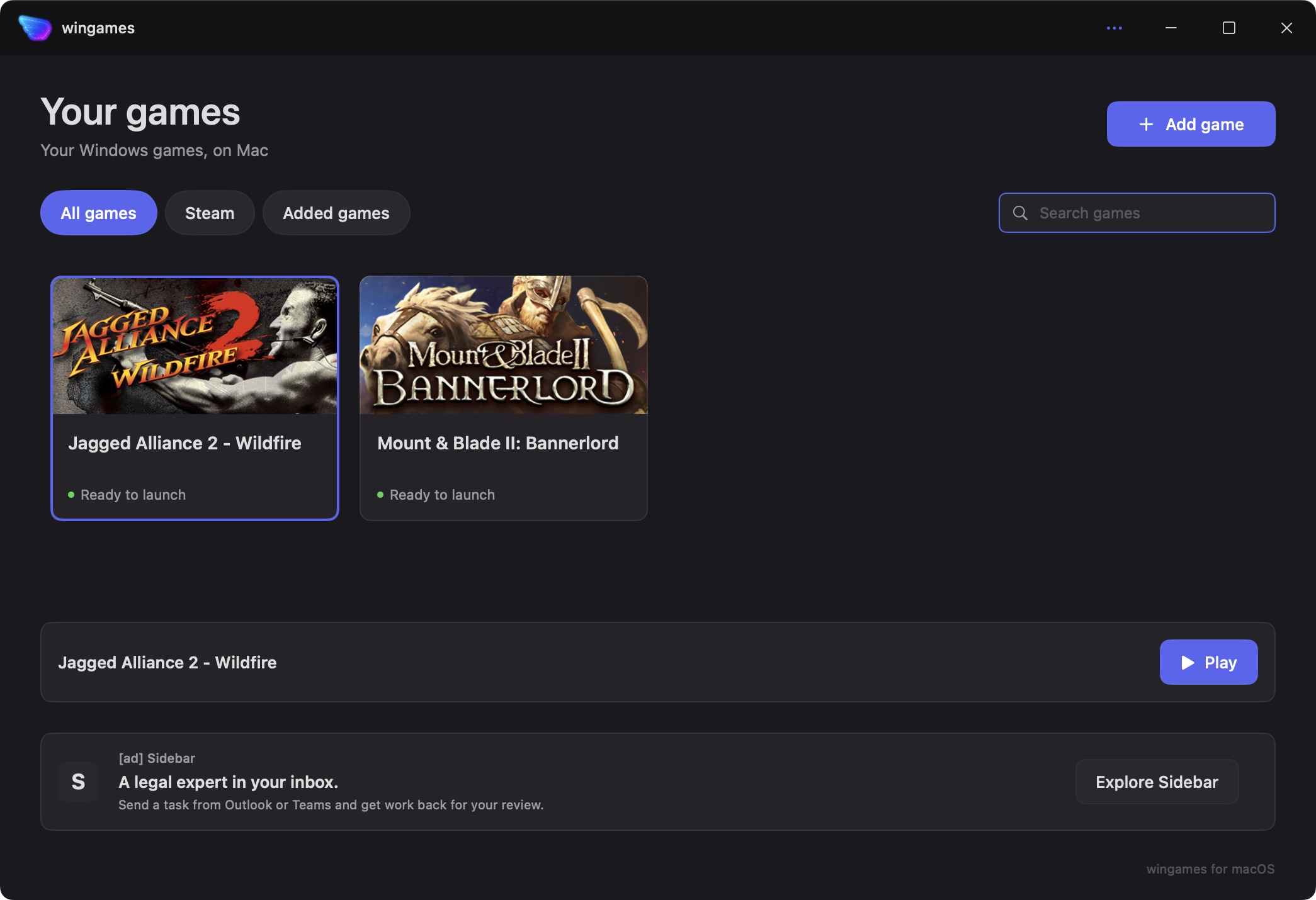
- Open wingames from Applications.
- If macOS blocks it, go to System Settings → Privacy & Security → Open Anyway → Open.
Play Love Android Workshop
- Download LAW_V0.5.zip (Windows) from SleepyRepairman.
- Extract the complete game folder.
- In wingames, choose Add game → From your computer… and select
LoveAndroidWorkshop.exe. - Press Play.
Keep LoveAndroidWorkshop.exe, LoveAndroidWorkshop_Data and the remaining files and folders together. Leave the folder where you added it.
If the picture is cropped
If the screen looks zoomed in on your Mac, change the resolution in the game’s settings.