
How to play Risk of Rain 2 on Mac — including multiplayer with Windows friends
Want to play Risk of Rain 2 on your Mac with friends who use Windows? wingames lets you install the Windows game through Steam and launch it from your game library.
I’ve tested it on an M2 Pro Mac, including playing a multiplayer run with a friend on Windows Steam.
1. Install Risk of Rain 2 and play on your Mac
You’ll need an M-series Mac with macOS 15 or later, wingames 1.2.2 or later, a Steam account and a copy of Risk of Rain 2.
Install wingames
- Download wingames and follow the installation instructions on that page, including Rosetta setup.
- Open the DMG and drag wingames into Applications.
- Open wingames from Applications.

If macOS blocks the app, go to System Settings → Privacy & Security → Open Anyway → Open. This version has not been notarized by Apple; only approve it if you trust the download source. The installation guide explains this step.
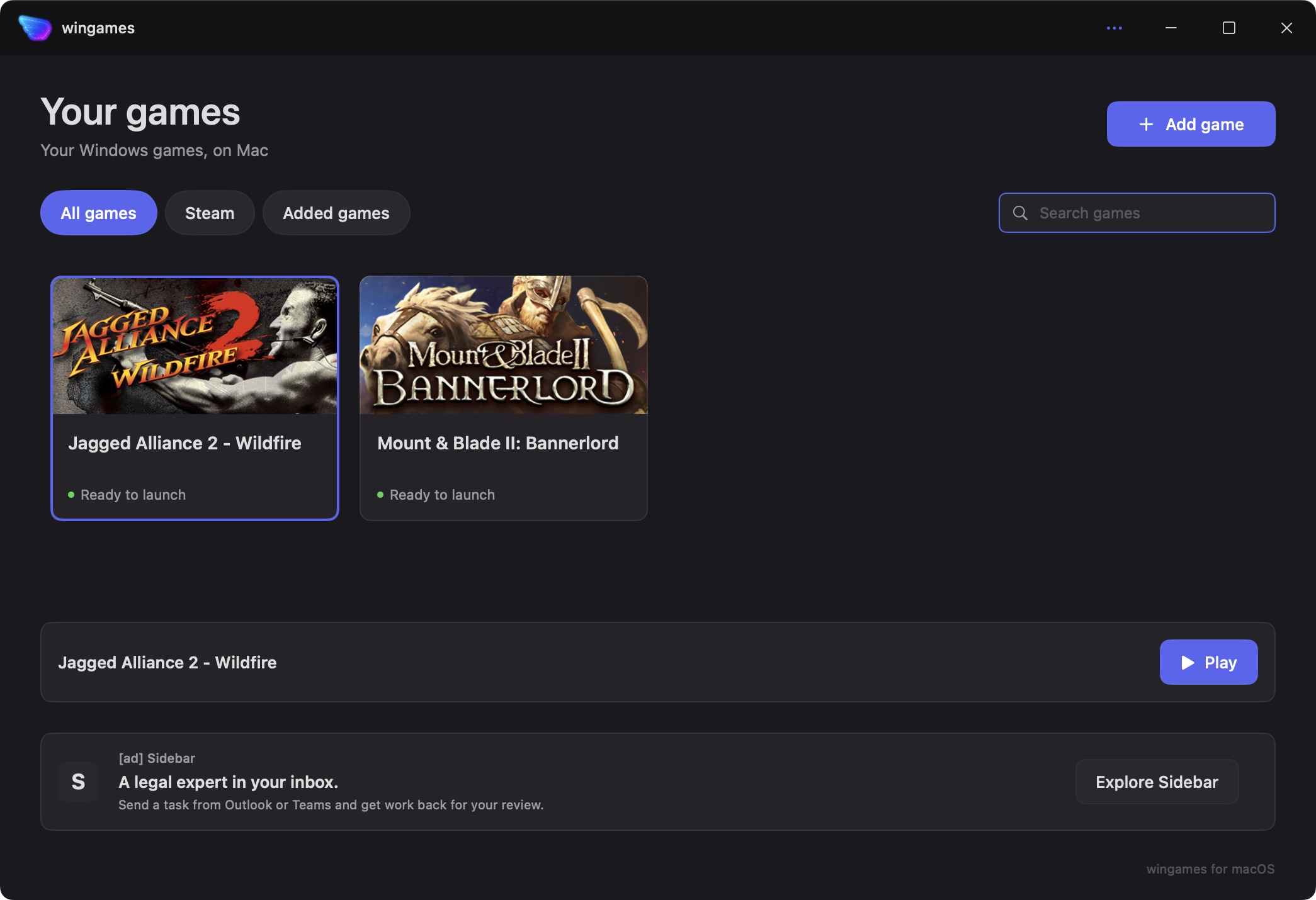
Install and launch the game
- In wingames, choose Add game → From Steam….
- Sign in to Steam, find Risk of Rain 2 and install it.
- Return to wingames, select Risk of Rain 2 and press Play.
Use Steam inside wingames for the installation. You don’t need to buy another copy if the game is already in your Steam library.
Play with a friend on Windows Steam
Open Multiplayer → Create Multiplayer Game and invite your friend, or join your friend’s game. Then start your run together.
You don’t need to enable Epic cross-play just because one person is on Mac and the other is on Windows. You’re both using the Steam version. Make sure your cross-play preferences match: Gearbox’s cross-play guide explains that players with different preferences cannot join each other.
My test was a multiplayer session with a Windows Steam friend on an M2 Pro running macOS 15.7.3, using game version 1.4.1. I haven’t tested Epic or console cross-play, or measured frame rates and long-session performance.
2. Why I worked on the multiplayer fix
Getting the game to open is only part of the job. You want to join your friends and actually play.
During testing, a Steam networking error pointed to something going wrong underneath the game. Windows games running on Mac use a translation layer to handle requests that would normally go to Windows. In this case, Steam asked for a small piece of information attached to a network packet.
macOS supplied that information with a different label from the one the translation layer expected. The request was accepted, but the response was dropped. Steam then complained that information it had asked for was missing.
I reproduced that defect separately from the game and fixed the translation so the real packet information reaches the Windows program. The correction is in the shared runtime; it doesn’t modify Risk of Rain 2’s files or rely on a special rule for its name.
The original runtime failed the affected checks. The corrected runtime passed all eight checks covering two kinds of network address, metadata switched on and off, and 32-bit and 64-bit programs. After that, I reached the multiplayer lobby and played a run with a friend on Windows Steam.
That confirms the defect and the successful session. It doesn’t prove every possible multiplayer problem is fixed, or establish the complete cause of the earlier unexpected exit.
What you get with wingames
Free tools are a valid way to play Windows games on Mac, especially if you enjoy setting things up yourself. wingames builds on open-source Wine and DXMT, and those projects deserve credit for making this possible.
What I add is the work around the game: choosing and bundling compatibility fixes, making Steam and downloaded games easy to launch, testing them, investigating failures and delivering updates.
For Risk of Rain 2, that meant finding and correcting a networking defect, then checking that multiplayer worked with a Windows Steam friend. You shouldn’t have to spend hours downloading random tools just to get a game to work.
If you enjoy that work, a do-it-yourself setup may suit you. If you want to install your game and press Play, that’s what I’m building wingames for.