
How to play Starmaker Story on an M-series Mac
wingames makes it easy to play Starmaker Story on MacOS.

- Download the Windows version from the game’s creator.
- Download wingames
- Extract the complete game folder.
- In wingames, choose Add game → From your computer… and select
Starmaker Story.exe. - Press Play.
Keep the game’s folders beside its executable. wingames does not copy the game files, so leave the folder where you added it.
If the picture is cropped
Save your progress before changing the picture size: it may enable fullscreen and reload the scene. You can also choose 1920 × 1080 or 2560 × 1440.
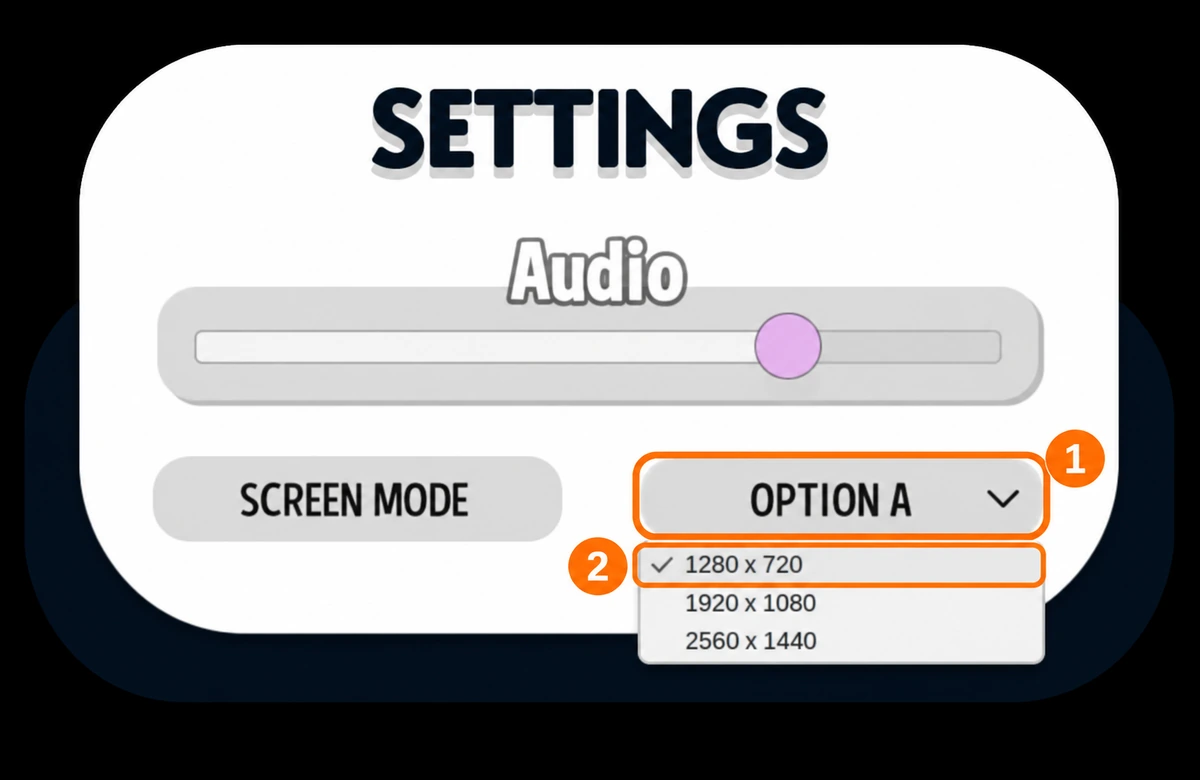
- Open Settings, then open the dropdown beside Screen Mode (it may say Option A).
- Select 1280 × 720 (16:9).
Choose the resolution that works for you. Fullscreen is a separate setting; black bars can keep the whole picture visible.
Display settings in wingames 1.2.0
Save and exit the game before changing these settings.
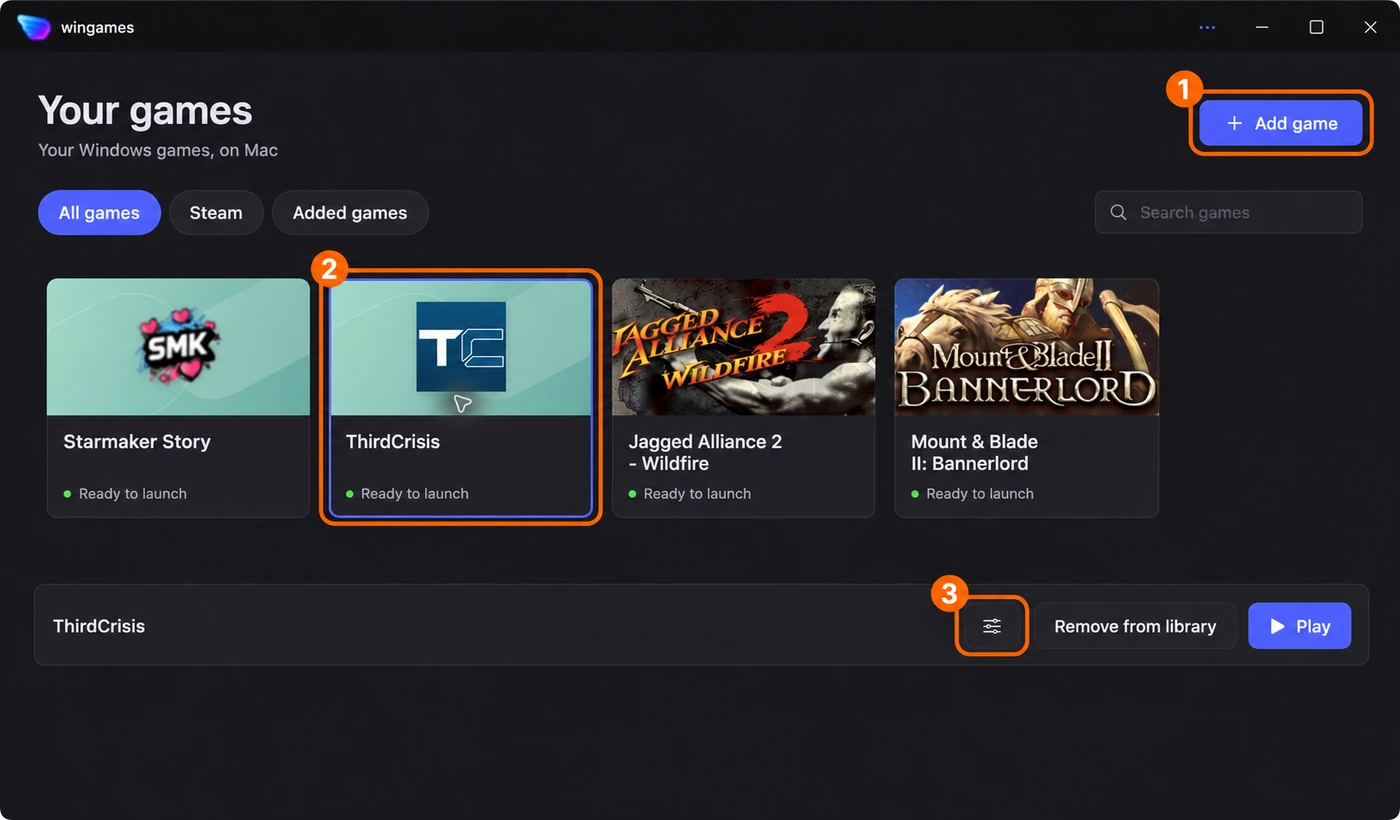
- Add game → From your computer…
- Select Starmaker Story once. Third Crisis is selected in the picture.
- Click the sliders beside Play to open Launch options.
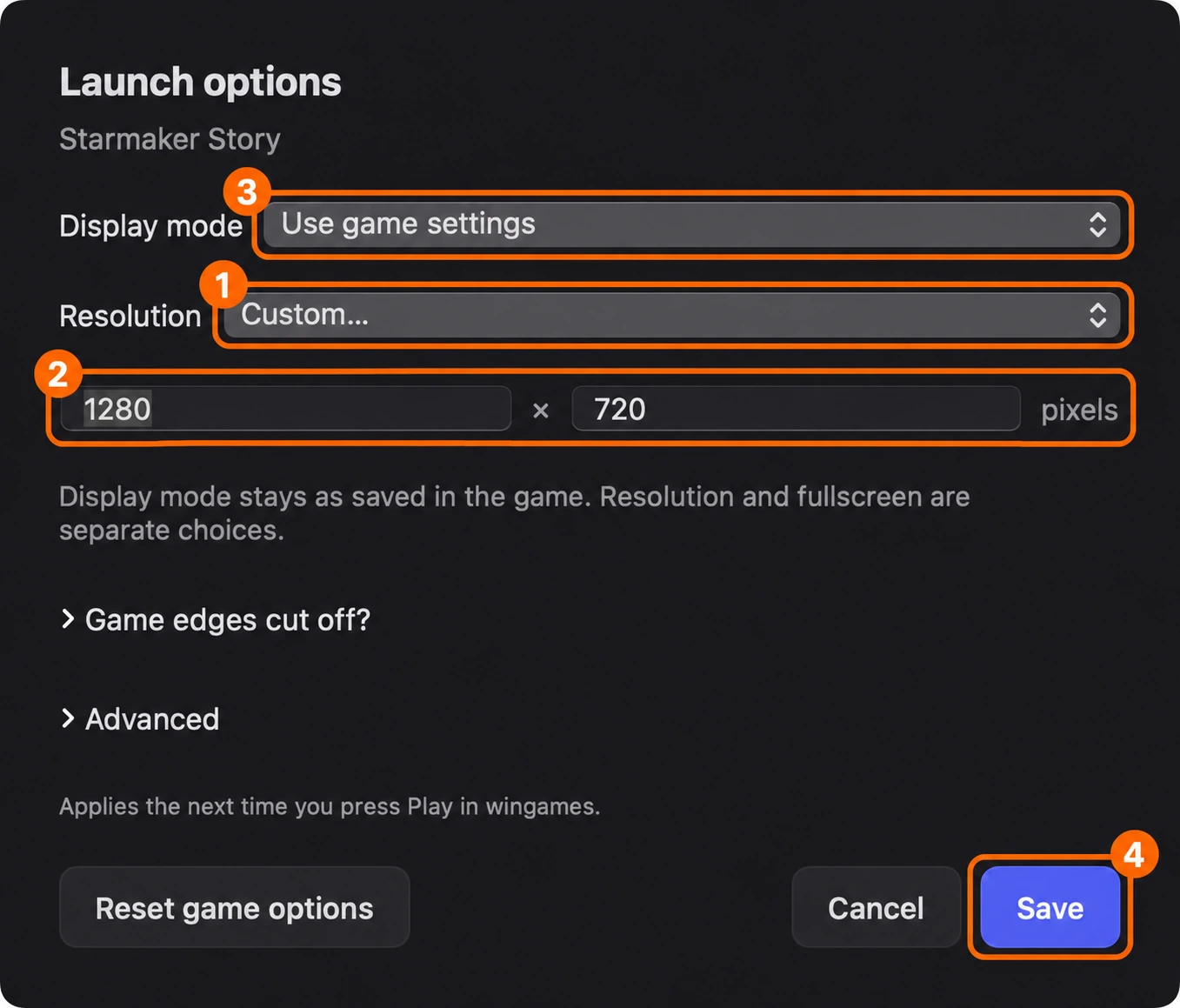
- Resolution → Custom…
- Width 1280; height 720.
- Choose Display mode: Fullscreen, Windowed or Use game settings.
- Save, then press Play.
Resolution → Use game settings leaves the size to the game. Check your chosen size inside the game after opening it.
If a size is missing
Only if the game does not offer a suitable size: save progress, choose ⋯ → Close Steam and games, then Launch options → Game edges cut off? → Extra screen resolutions → Save. Reopen the game and choose its size in the game’s settings.
Extra screen resolutions affects all games and Steam. Some larger sizes may disappear. Turn it off to restore the original list.
These steps cover Windows version 1.8E.